15 Pro Streaming Tips to Get the Best IPTV Experience on Any Device
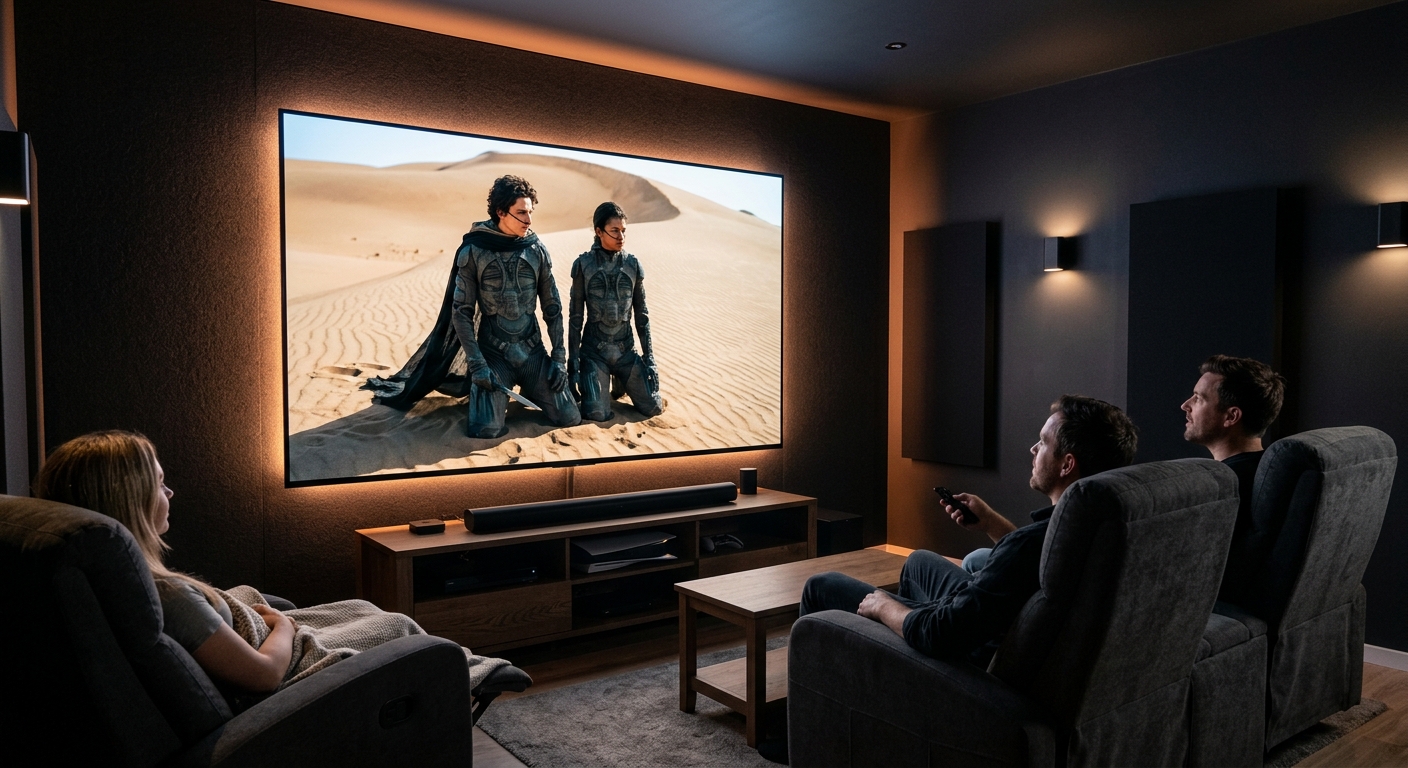
How to Stream Smarter, Not Harder
Getting an IPTV subscription is just the beginning. The difference between a frustrating experience filled with buffering and a seamless, cinema-quality stream often comes down to a handful of configuration choices that most users never make. After supporting tens of thousands of subscribers across 160+ countries, our team has identified the changes that deliver the most dramatic improvements.
Here are 15 pro-level streaming tips that apply regardless of your device, operating system, or IPTV player.
Tip 1: Always Prefer a Wired Ethernet Connection
If your streaming device has an Ethernet port — or you are willing to invest in a USB-to-Ethernet adapter (around £8 for a Firestick-compatible one) — always use it over Wi-Fi. A wired connection provides:
- Consistent speeds without the fluctuations inherent in wireless
- Lower latency — critical for live sports where even a 1-second delay is noticeable
- No interference from neighbouring networks, microwaves, or baby monitors
- True gigabit speeds if your broadband supports it
If your Firestick, Android TV box, or smart TV does not have a built-in Ethernet port, USB-to-Ethernet adapters are cheap and highly effective.
Tip 2: Use the 5 GHz Wi-Fi Band for Wireless Devices
When Ethernet is not possible, connecting your streaming device to the 5 GHz band rather than the default 2.4 GHz band makes a meaningful difference. The 5 GHz band offers:
- Higher potential throughput (up to 3x faster in ideal conditions)
- Significantly less congestion from neighbours’ networks
- Lower interference from household appliances
The trade-off is that 5 GHz signals do not penetrate walls as effectively. If your device is in the same room as your router, always choose 5 GHz. If it is two rooms away, 2.4 GHz may actually deliver more stable speeds.
Tip 3: Run a Speed Test at Peak Hours
Do not judge your internet speed by the headline figure on your broadband contract. Run a real-time speed test at speedtest.net during evening peak hours (7–10 pm), which is when ISP networks are most congested. This gives you an accurate picture of what your IPTV player actually has available.
For smooth 1080p HD streaming, aim for at least 15 Mbps. For 4K, you want at least 35 Mbps. If your peak-hour results fall short, consider contacting your ISP or switching to a faster plan.
Tip 4: Enable Hardware Decoding in Your Player
Every modern streaming device — Firestick, Android TV box, Smart TV, Apple TV — has a dedicated media processor capable of decoding H.264 and H.265 video in hardware, vastly more efficiently than software decoding on the CPU.
Enabling hardware decoding typically reduces CPU usage by 60–80% and eliminates the frame drops and overheating that cause buffering on demanding 4K or HDR streams.
- TiviMate: Settings → Video Player → Decoder → HW
- IPTV Smarters Pro: Settings → Player Settings → Hardware Acceleration → On
- VLC (PC/Mac): Tools → Preferences → Input / Codecs → Hardware-accelerated decoding → Automatic
Tip 5: Optimise Your Buffer Settings
Most IPTV players let you manually adjust the pre-buffer size — the amount of video data loaded before playback begins. A larger buffer absorbs brief network drops (caused by interference, congestion, or packet loss) without interrupting playback.
Experiment with buffer sizes between 500 KB and 5 MB. Start at 2 MB. If you see initial loading delays but smooth playback thereafter, the larger buffer is working. If playback starts instantly but occasionally stutters, try increasing the buffer further.
On a very fast, stable connection (50+ Mbps wired), a smaller buffer (500 KB–1 MB) is fine and will give you faster channel-change times.
Tip 6: Restart Your Router Weekly
Home routers accumulate memory leaks, stale DNS cache entries, and connection table bloat over time. A weekly restart — which takes about 2 minutes — flushes all of this and typically results in noticeably faster speeds and more stable connections.
Most modern routers support scheduled restarts via the admin panel (usually at 192.168.1.1 or 192.168.0.1). Set it to restart at 4 am on a day you are unlikely to be streaming. You will never notice it.
Tip 7: Keep Your Streaming Device and IPTV App Updated
Both the operating system on your streaming device and the IPTV app itself receive regular updates that include performance improvements, codec updates, and bug fixes. Outdated firmware can cause compatibility issues with newer video formats like AV1 or HEVC HDR10+.
On Firestick: Settings → My Fire TV → About → Check for Updates
On Android TV: Settings → Device Preferences → About → System Update
For sideloaded IPTV apps: check the developer’s website periodically for new APK versions
Tip 8: Clear App Cache Regularly
IPTV players accumulate substantial cached data over time — EPG information, channel logos, thumbnails, and temporary stream data. When the cache grows too large, apps become sluggish and prone to crashing.
Clear your IPTV app’s cache every 2–4 weeks:
- Firestick/Android TV: Settings → Applications → Manage Installed Applications → [Your Player] → Clear Cache
- Android phones: Settings → Apps → [Your Player] → Storage → Clear Cache
Do not tap “Clear Data” unless you want to reset the app entirely (which will remove your playlist and preferences).
Tip 9: Use the EPG to Plan Your Viewing
The Electronic Programme Guide (EPG) in your IPTV player shows the schedule for every channel up to 7 days ahead. Most users browse the live channel list and never discover the EPG — but it transforms the experience.
Using the EPG, you can:
- See exactly what is on right now across hundreds of channels at a glance
- Set reminders for upcoming sports events or TV premieres
- Browse catch-up content by scrolling backwards through the schedule
- Find less-obvious channels that you would never stumble across by browsing
In TiviMate, press the Guide button (or navigate to the EPG section) to open the full grid view. It is one of the best EPG implementations available on any IPTV player.
Tip 10: Add Channels to Favourites
If you have 45,000+ channels available, browsing for your go-to sports channel every evening is a waste of time. Spend 10 minutes building a Favourites list with your 20–30 most-watched channels, and you will never browse the full list again.
In TiviMate, long-press a channel to open the context menu, then select Add to Favourites. You can create multiple Favourites groups — one for sport, one for family viewing, one for news — and switch between them from the sidebar.
Tip 11: Test Multiple Streams for Popular Channels
Popular channels — especially major sports broadcasts — are often available in multiple stream versions (sometimes labelled with server locations: UK1, UK2, US-East, etc.). If your primary stream is buffering during a big match, try switching to an alternative stream for the same channel. In most IPTV players, right-clicking or long-pressing a channel reveals alternative stream options.
Tip 12: Use a VPN Strategically
A VPN is not always beneficial for IPTV streaming. However, in specific situations, it can help:
- ISP throttling: Some ISPs throttle streaming traffic during peak hours. A VPN hides the type of traffic you are sending, potentially bypassing throttles.
- Geo-restrictions on certain content: If specific content categories are restricted in your region, a VPN with a server in an unrestricted country can provide access.
When using a VPN with IPTV, choose a server geographically close to you to minimise additional latency. Avoid free VPNs — they introduce more lag than they solve and typically have strict bandwidth caps.
Tip 13: Reduce Background App Activity on Your Device
Streaming devices — especially budget Android boxes and older Firesticks — have limited RAM. Background apps consume memory and CPU cycles, leaving less for your IPTV player and leading to buffering that has nothing to do with your internet connection.
Before starting a streaming session:
- Close any open apps using the back button until you reach the home screen
- On Firestick, hold the Home button → Apps → and swipe up to close recent apps
- On Android boxes, use the built-in task manager to force-stop background processes
Tip 14: Configure Display Resolution to Match Your Content
Mismatched display resolution settings are a surprisingly common cause of picture quality degradation and playback issues. If your device is set to output at 1080p but your TV is 4K, or vice versa, the device (or TV) must perform a scale conversion that can introduce artefacts.
Set your streaming device’s output resolution to match your TV’s native resolution:
- 4K TVs: Set output to 3840×2160 (4K UHD)
- 1080p TVs: Set output to 1920×1080
Also ensure your HDMI cable is rated for the bandwidth your setup requires — 4K HDR at 60 fps requires an HDMI 2.0 or 2.1 cable. Budget HDMI cables rated for HDMI 1.4 can cause intermittent picture loss on 4K displays.
Tip 15: Know When to Contact Support
Some issues genuinely require a provider-side fix — unhealthy streams, temporary server outages, or EPG data errors. If you have tried the relevant tips above and an issue persists with a specific channel or content type, the fastest path to resolution is contacting support directly.
Smarter Stream TV’s support team is available 24/7 via WhatsApp. Include your username, the affected channel name, and a brief description of the issue. With that information, our engineers can check stream health logs, identify the root cause, and either fix it immediately or suggest an alternative stream within minutes.
Summary
The tips above are ordered roughly by impact-to-effort ratio. Start with the network fundamentals (Ethernet, 5 GHz Wi-Fi, speed test), then move to player configuration (hardware decoding, buffer size), then device hygiene (cache clearing, background apps, firmware updates). Most users who implement even the first five tips see an immediate and significant improvement in streaming quality.
Start your free trial if you have not already, and put these tips into practice with 45,000+ channels and 220,000+ VOD titles waiting for you.
Related Articles
-
 Streaming Tips
10 Best Streaming Tips to Maximise Your IPTV Experience in 2024
Discover the top tips and tricks to get the most out of your IPTV subscription — from optimising your internet speed to choosing the right device.
Smarter Stream TV Team 5 min read -
 Troubleshooting
How to Fix IPTV Buffering Issues: The Complete Troubleshooting Guide
A step-by-step diagnostic guide for resolving IPTV buffering, freezing, and stream quality issues on any device. Covers network problems, player configuration, device performance, and when to contact your provider.
Smarter Stream TV Team 10 min read -
 Technology News
The Future of IPTV Technology: What's Coming in 2025 and Beyond
An in-depth look at the technologies reshaping IPTV streaming — from AV1 codec adoption and AI-driven upscaling to low-latency live protocols, 8K readiness, and the convergence of streaming and social media.
Smarter Stream TV Team 8 min read