Amazon Firestick IPTV Setup Tutorial: From Unboxing to Live TV in 15 Minutes
Introduction: Why Firestick Is the Go-To IPTV Device
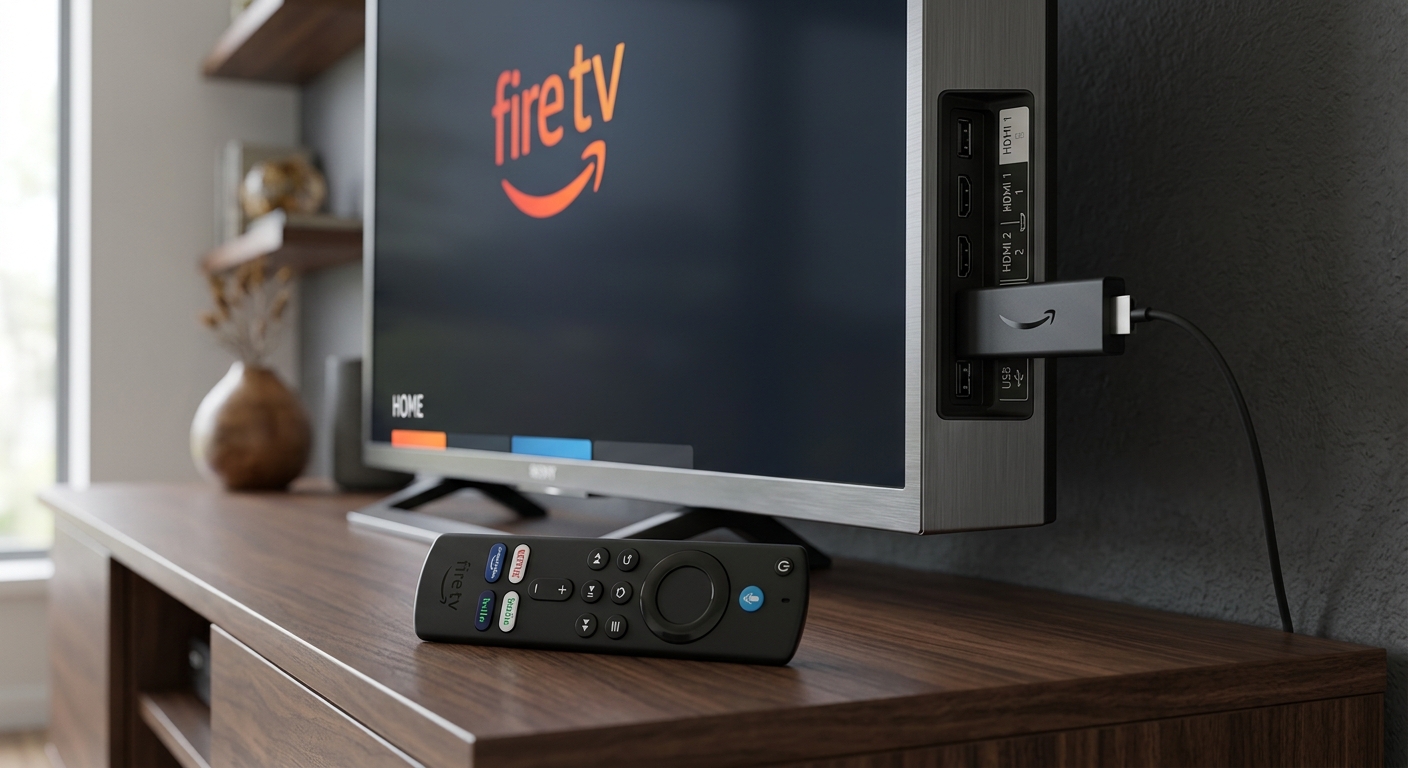
When it comes to IPTV streaming hardware, the Amazon Firestick consistently tops the popularity charts — and for good reason. It is compact, affordable (starting around £29), runs a capable Android-based OS, and supports app sideloading, which means you are not limited to what Amazon puts in its app store. Every major IPTV player — TiviMate, IPTV Smarters Pro, GSE Smart IPTV — is available on Firestick via direct APK installation.
This tutorial covers every step from initial device configuration through to a fully working Smarter Stream TV setup with EPG and catch-up TV. It applies to all Firestick models including the Firestick Lite, Firestick 4K, Firestick 4K Max, and the Fire TV Cube (2nd and 3rd generation).
What You Need Before Starting
Before you begin, gather the following:
- Amazon Firestick (any model, plugged into your TV and powered on)
- Active Wi-Fi connection — 10 Mbps minimum, 25 Mbps recommended for 4K
- Smarter Stream TV credentials — your M3U URL and/or Xtream Codes API details (server URL, username, password), received by email when you sign up
- Amazon account signed in on the Firestick
- Optional: A USB keyboard or the Firestick remote (the on-screen keyboard is usable but slow)
If you do not yet have credentials, request your free trial — activation takes under 5 minutes.
Phase 1: Configure Firestick for Sideloading
Amazon’s default settings block apps from outside the Amazon Appstore. You need to change this before installing any IPTV player.
1.1 Enable Unknown Sources
- From the Firestick home screen, press and hold the Home button to open quick settings, or navigate to Settings from the top menu bar
- Select My Fire TV
- Select Developer Options
- If you do not see “Developer Options”, go to About → Fire TV Stick and click the build number 7 times rapidly to unlock developer options
- Toggle Apps from Unknown Sources (also labelled “Install Unknown Apps” on newer firmware) to ON
- Confirm the security warning by tapping Turn On
This setting persists across reboots — you only need to enable it once.
1.2 Enable ADB Debugging (Optional but Useful)
While in Developer Options, also enable ADB Debugging. This allows you to use additional tools for managing the device and can help with troubleshooting later.
Phase 2: Install the Downloader App
The Downloader app (by AFTVnews) is the standard method for sideloading APKs onto Firestick. It is a free and trusted app available directly from the Amazon Appstore.
- Press the Home button and navigate to the magnifying glass (search icon)
- Search for “Downloader”
- Look for the app by developer AFTVnews — it has an orange icon
- Press Download or Get and wait for installation
- Open Downloader and grant it permission to access device storage when prompted
- In the Downloader settings, enable JavaScript (required for some download pages)
Phase 3: Install Your IPTV Player
You have two excellent options. TiviMate is the recommended choice for most users due to its superior EPG, multi-panel layout, and recording capabilities. IPTV Smarters Pro is a solid free alternative.
Option A: Install TiviMate (Recommended)
TiviMate is the most polished IPTV player available on Android-based devices. The core app is free; TiviMate Companion (a small one-time purchase via Google Play on a phone or tablet) unlocks recording, multi-panel view, and unlimited playlists.
- Open Downloader on your Firestick
- In the URL field at the top, type the TiviMate download URL (available from the official TiviMate website or a trusted IPTV guide source)
- The APK file will download — this typically takes under 30 seconds
- When the download completes, tap Install
- Tap Done once installation finishes (do not tap “Open” yet)
- Return to Downloader and delete the APK to free up storage space
Option B: Install IPTV Smarters Pro (Free Alternative)
IPTV Smarters Pro is a feature-rich, entirely free IPTV player with a clean interface and good EPG support.
- In Downloader, search for the official IPTV Smarters Pro APK download page
- Download the latest version APK
- Install it following the same steps as above
Phase 4: Add Your Smarter Stream TV Subscription
With your player installed, it is time to add your credentials. The process is nearly identical for both TiviMate and IPTV Smarters Pro.
Adding via M3U URL
An M3U URL is a direct link to your channel playlist. It is the simplest method and works with all players.
- Open your IPTV player
- Select Add Playlist → M3U URL
- Paste your M3U URL from your Smarter Stream TV welcome email
- Give the playlist a name (e.g., “Smarter Stream TV”)
- For EPG, paste your EPG/XMLTV URL if provided (optional — the player may auto-detect it)
- Tap Add or Save and wait for the playlist to load
Adding via Xtream Codes API
Xtream Codes is an alternative login method that typically loads channel lists faster and supports more EPG features.
- Open your IPTV player
- Select Add Playlist → Xtream Codes API (or “Login” in some players)
- Enter:
- Server/Portal URL: (from your welcome email)
- Username: (from your welcome email)
- Password: (from your welcome email)
- Tap Connect or Add
The player will begin downloading your channel list, EPG data, and VOD library. On first load, this can take 2–5 minutes depending on the size of the playlist and your connection speed. Subsequent loads are cached and much faster.
Phase 5: Optimise Performance on Firestick
A few configuration changes can make a significant difference to playback smoothness, especially on older Firestick models.
Enable Hardware Decoding
Hardware decoding offloads video processing to the Firestick’s dedicated media processor rather than the general CPU. This dramatically improves 4K playback.
- TiviMate: Settings → Video Player → Decoder → HW (Hardware)
- IPTV Smarters Pro: Settings → Player Settings → Hardware Acceleration → Enabled
Increase Buffer Size
A larger buffer pre-loads more video data before playback, smoothing out brief network hiccups.
- TiviMate: Settings → Video Player → Buffer Size → 2 MB
Free Up Storage
IPTV players cache thumbnail data, EPG information, and recordings. Keep at least 500 MB of free storage on the Firestick:
- Go to Settings → My Fire TV → About → Storage
- For any apps you do not use, go to Settings → Applications → Manage Installed Applications and clear their cache or uninstall them
Disable Auto-Updates for Installed APKs
Automatic updates for sideloaded apps can fail and leave apps in a broken state. Disable automatic updates in the Downloader app settings if the option is available.
Phase 6: Navigating Your Content
Once your playlist is loaded, here is how to find what you want quickly:
- Favourites: Add channels to your Favourites list (long-press or swipe in most players) for quick access
- EPG Grid view: Switch to the EPG grid to see all channels and their current/upcoming programmes simultaneously
- Category filter: Use the built-in categories (Sports, UK, US, Entertainment, Movies, Kids) to browse by type
- Search: Type a channel name in the search bar — this is the fastest way to find a specific channel or VOD title
- Catch-Up: In the EPG view, scroll left (backwards in time) to see past programmes with a rewind icon — these support catch-up playback
Troubleshooting Common Firestick IPTV Issues
Buffering on Specific Channels
Check whether the buffering is isolated to certain channels or universal. If it is just a few channels, the issue is likely server-side. Contact Smarter Stream TV support and provide the channel names — we can check stream health and suggest alternatives.
App Keeps Crashing
Clear the app cache first: Settings → Applications → Manage Installed Applications → [Player] → Clear Cache and Clear Data. If the problem persists, uninstall and reinstall the app using the same APK download process.
EPG Shows “No Data”
EPG population takes 10–15 minutes on first load. If it remains empty after 20 minutes, navigate to the player settings and trigger a manual EPG refresh. Also ensure the EPG URL (if separately configured) is correct and accessible.
”Parse Error” When Installing APK
This typically means the downloaded APK file was corrupted during download. Delete the APK in Downloader and re-download it.
Firestick Remote Not Controlling IPTV Player
Ensure HDMI-CEC is enabled on your TV (it has different names on different brands: Anynet+ on Samsung, Bravia Sync on Sony, EasyLink on Philips). Also check that the Firestick’s IR output is not blocked.
Getting Support
The Smarter Stream TV support team is available 24/7 via WhatsApp. Reach out with your username and a clear description of the issue — our engineers typically respond within minutes and can remotely diagnose most configuration issues from the stream logs.
Finished your Firestick setup? Explore our full range of device tutorials for Android TV, Smart TV, Apple TV, MAG boxes, and more — or dive into our streaming tips guide to squeeze every last bit of performance from your new setup.
Related Articles
-
 Device Tutorials
How to Set Up IPTV on Firestick: Complete Step-by-Step Tutorial
Learn how to install and configure IPTV on your Amazon Firestick in under 10 minutes. Covers IPTV Smarters Pro, TiviMate, and troubleshooting common issues.
Smarter Stream TV Team 6 min read -
 Troubleshooting
How to Fix IPTV Buffering Issues: The Complete Troubleshooting Guide
A step-by-step diagnostic guide for resolving IPTV buffering, freezing, and stream quality issues on any device. Covers network problems, player configuration, device performance, and when to contact your provider.
Smarter Stream TV Team 10 min read -
 Technology News
The Future of IPTV Technology: What's Coming in 2025 and Beyond
An in-depth look at the technologies reshaping IPTV streaming — from AV1 codec adoption and AI-driven upscaling to low-latency live protocols, 8K readiness, and the convergence of streaming and social media.
Smarter Stream TV Team 8 min read