How to Set Up IPTV on Firestick: Complete Step-by-Step Tutorial
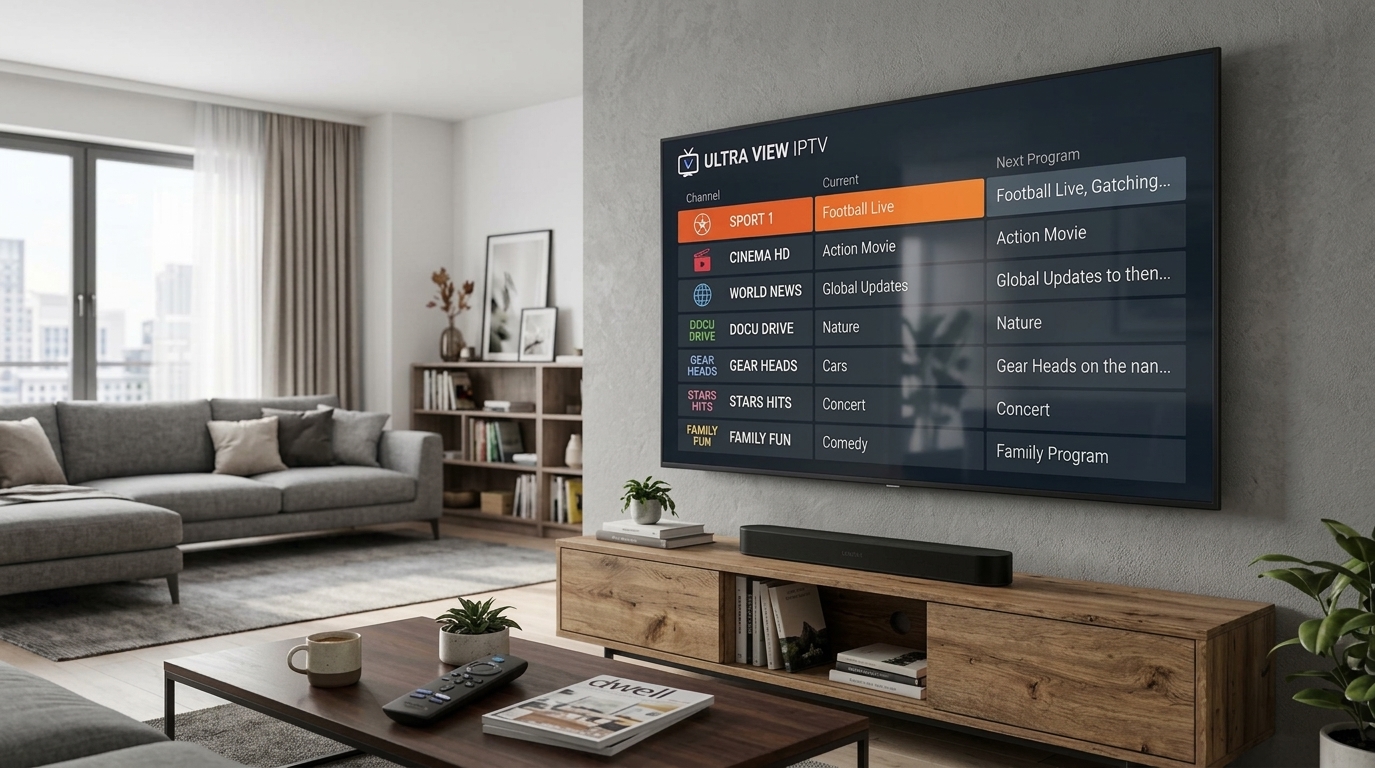
Why Firestick Is the Most Popular IPTV Device
The Amazon Firestick has become the go-to device for IPTV streaming, and it is easy to see why. It is affordable (typically £29–£49), portable, and powered by a capable Android-based operating system that supports sideloaded APKs. This means you can install any IPTV player — including the most advanced ones not available on the Amazon Appstore — with just a few taps.
Smarter Stream TV supports all generations of Firestick and Fire TV devices, from the basic Firestick Lite right through to the Fire TV Cube. This guide covers the complete setup process for any Firestick model.
What You Will Need Before Starting
Make sure you have the following before beginning the setup:
- An Amazon Firestick (any generation) connected to your TV
- A Wi-Fi connection of at least 10 Mbps (25 Mbps recommended for 4K)
- Your Smarter Stream TV credentials (M3U URL or Xtream Codes API details)
- An Amazon account signed in on the Firestick
If you have not yet received your credentials, start your free trial and they will be emailed to you within minutes.
Step 1: Enable Apps from Unknown Sources
Amazon restricts Firestick to apps from its own store by default. To install IPTV Smarters Pro or TiviMate — both available as APKs — you first need to allow installations from unknown sources.
- From the Firestick home screen, go to Settings (gear icon in the top-right)
- Select My Fire TV
- Select Developer Options
- Toggle Apps from Unknown Sources to ON
- Confirm the warning prompt by selecting Turn On
You only need to do this once. The setting remains enabled until you change it.
Step 2: Install the Downloader App
The Downloader app is the easiest way to sideload APKs onto Firestick. It is available free from the Amazon Appstore.
- Press the Home button and navigate to the search icon
- Search for “Downloader”
- Select the app by AFTVnews (the original developer)
- Click Download and then Open
- Accept any permission prompts and allow the app to access storage
Step 3: Download and Install Your IPTV Player
You have two excellent options for Firestick IPTV playback: IPTV Smarters Pro and TiviMate. Here is how to install each.
Option A: Install IPTV Smarters Pro (Free)
IPTV Smarters Pro is a polished, feature-rich player that supports M3U playlists, Xtream Codes, and EPG. It is free and works very well for most users.
- Open the Downloader app
- In the URL bar, type:
https://smarterstreamtv.com/smarters(or search for the official IPTV Smarters APK URL) - The APK will download automatically
- When prompted, tap Install
- Once installed, tap Open
Option B: Install TiviMate (Recommended for Advanced Users)
TiviMate is widely considered the best IPTV player for Android-based devices. The free version is fully functional; TiviMate Companion (a one-time purchase) unlocks recording, multi-panel view, and additional customisation.
- Open Downloader and navigate to the TiviMate APK download page
- Download the latest TiviMate APK
- Install and open TiviMate
Step 4: Configure Your Smarter Stream TV Subscription
Once your IPTV player is installed, you need to add your Smarter Stream TV credentials. The process is the same for both players.
Using M3U URL
- Open your IPTV player and select Add Playlist or Add New Playlist
- Choose M3U URL
- Paste your M3U URL (found in your welcome email or account dashboard)
- Enter a name for the playlist (e.g., “Smarter Stream TV”)
- Tap Add or Save
Using Xtream Codes API
- Open your IPTV player and select Add Playlist or Login with Xtream Codes
- Enter the Server URL, Username, and Password from your welcome email
- Tap Connect or Login
The player will load your complete channel list and EPG data. This may take 1–3 minutes on the first load.
Step 5: Optimise Firestick Performance for IPTV
A stock Firestick can sometimes feel sluggish with resource-heavy IPTV players. These optimisations will ensure smooth playback:
Enable Hardware Decoding
In TiviMate: Settings → Video Player → Decoder → Hardware (HW)
In IPTV Smarters: Settings → Player Settings → Hardware Acceleration → On
Increase Buffer Size
In TiviMate: Settings → Video Player → Buffer Size → 2 MB
This adds a couple of seconds of pre-loaded video, smoothing out brief network drops.
Clear Junk Apps
Many Firesticks come pre-loaded with Amazon apps that run in the background. From Settings → Applications → Manage Installed Applications, force-stop any apps you do not use.
Use Developer Tools to Force GPU Rendering
In Developer Options, enable Force Allow External Storage and GPU Rendering. These options can improve rendering performance on older Firestick models.
Navigating Your Channel List
Once your playlist is loaded, you will have access to thousands of channels organised by category. The typical structure in Smarter Stream TV’s playlist looks like this:
- Live TV — broken down by region (UK, US, Sports, News, Entertainment, Movies)
- Sports — premium sports packages including major football leagues, boxing, F1, and cricket
- PPV & Events — pay-per-view and live events
- Movies & Series — VOD library accessible from the dedicated VOD section
- Kids — family and children’s content
Use the search function within your IPTV player to quickly find specific channels. The EPG (Electronic Programme Guide) view shows the current schedule for each channel, including catch-up availability.
Troubleshooting Common Firestick IPTV Issues
Channels Are Buffering or Freezing
- Check your Wi-Fi speed using the Downloader app
- Switch from the 2.4 GHz band to the 5 GHz band in Wi-Fi settings
- Enable hardware decoding in your player
- Reduce the stream quality setting if your connection is consistently below 15 Mbps
App Crashes After Loading Playlist
- Clear the app cache: Settings → Applications → [Player] → Clear Cache
- Uninstall and reinstall the player
- Try switching from M3U to Xtream Codes API (or vice versa)
EPG Not Loading
- Reload the playlist from the player settings
- Check that your subscription is active in your account dashboard
- EPG data can take up to 15 minutes to fully populate on the first load
Can’t Install APK — “Blocked by Play Protect”
This message appears on some devices. Select Install Anyway. All official IPTV player APKs from reputable sources are safe.
Getting 24/7 Support
If you run into issues that this guide does not resolve, the Smarter Stream TV support team is available 24 hours a day, 7 days a week via WhatsApp. Simply reach out with your username and a description of the issue, and we will get you sorted — usually within minutes.
Set up complete? Explore our full library of device setup guides for Android, Smart TV, Apple TV, and more.
Related Articles
-
 Device Tutorials
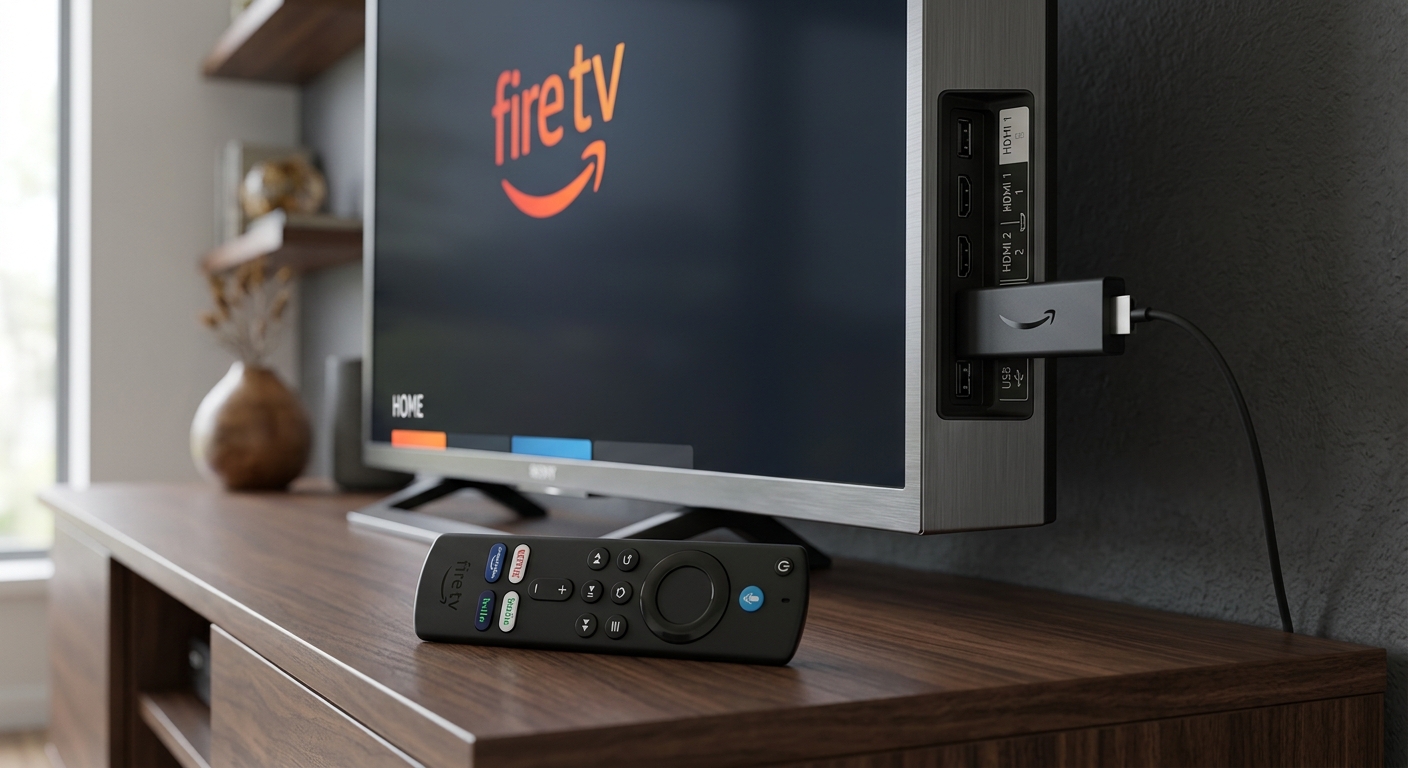
Amazon Firestick IPTV Setup Tutorial: From Unboxing to Live TV in 15 Minutes
A complete, up-to-date tutorial for setting up IPTV on any Amazon Firestick or Fire TV device. Covers enabling sideloading, installing TiviMate or IPTV Smarters Pro, adding your M3U playlist, and advanced performance optimisations.
Smarter Stream TV Team 8 min read -
 Troubleshooting
How to Fix IPTV Buffering Issues: The Complete Troubleshooting Guide
A step-by-step diagnostic guide for resolving IPTV buffering, freezing, and stream quality issues on any device. Covers network problems, player configuration, device performance, and when to contact your provider.
Smarter Stream TV Team 10 min read -
 Technology News
The Future of IPTV Technology: What's Coming in 2025 and Beyond
An in-depth look at the technologies reshaping IPTV streaming — from AV1 codec adoption and AI-driven upscaling to low-latency live protocols, 8K readiness, and the convergence of streaming and social media.
Smarter Stream TV Team 8 min read